



STEP 1 — Measure Your Room

Before going into 3D, write down:
-
Length of each wall
-
Height of walls
-
Window width & height
-
Door width & height
-
Location of outlets/lights (optional)
STEP 2 — Create a Free Account

Use any of these (choose ONE):
-
Go to planner5d.com
-
Create a free account
-
Click “Create New Project”
Option B — HomeByMe
-
homebyme.com
-
“Start My Project”
Option C — Sweet Home 3D
-
Download → sweethome3d.com
-
Offline, easy, simple
STEP 3 — Draw Your Floor Plan in 2D
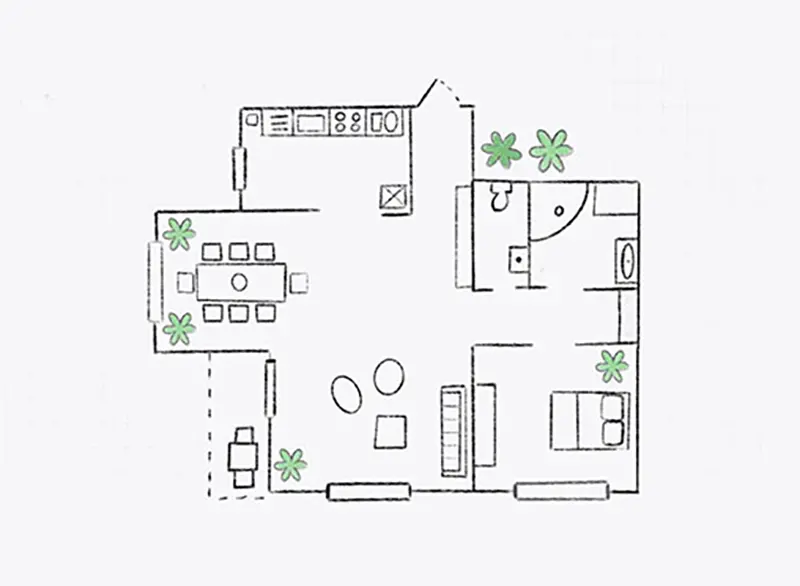
Inside the app:
-
Select “Walls”
-
Click and draw each wall based on your measurements
-
Add doors and windows
-
Add flooring type (wood, tile, etc.)
STEP 4 — Switch to 3D View
Click “3D View” or “Rendered View.”
Now you will see your room/house in full 3D.
You can:
-
Rotate the camera
-
Walk inside like a video game
-
Change wall height
-
Change lighting
STEP 5 — Add Furniture & Renovation Elements
Add:
-
Cabinets
-
Sofa / bed
-
Paint colors
-
Tiles
-
Lamps
-
Decorations
Change:
-
Wall colors
-
Floor material
-
Ceiling type
-
Doors and windows style
STEP 6 — Try Different Renovation Versions
This is the fun part.
Create versions like:
-
Version A: white walls + wood floor
-
Version B: dark walls + marble floor
-
Version C: smaller couch, bigger table
STEP 7 — Render or Export Your 3D Room
When you’re done:
-
Export as 3D photos
-
Export as walkthrough video
-
Share with contractors or family
-
Save as PDF floor plan (optional)
Planner 5D and HomeByMe give high-quality 3D renders.
OPTIONAL: Advanced 3D (More realistic)
If you later want super realistic results:
Use Blender (free)
-
Import your room
-
Add real lighting
-
Add textures
-
Render realistic images like a photo
But start with Planner 5D — much easier.
Measure Your Living Room
Example measurements:
-
Wall 1: 4.2 m
-
Wall 2: 3.8 m
-
Wall 3: 4.2 m
-
Wall 4: 3.8 m
-
Ceiling height: 2.4 m
-
Window: 1.5 × 1.2 m
-
Door: 90 cm width
Create a New Project (Use Planner 5D)
-
Go to planner5d.com
-
Click “Create New Project”
-
Choose Empty Room → Living Room
-
Start with a blank 2D grid
Draw the Room in 2D
Using the example measurements:
-
Select Walls
-
Draw a rectangle: 4.2m × 3.8m
-
Add the window: top wall, centered
-
Add the door: bottom left corner
-
Add wood flooring from the materials menu
Switch to 3D View
Click 3D View → you now see:
-
Walls standing
-
Wooden floor
-
Window and door in place
-
Basic lighting
Rotate the camera → walk inside the room.
Add Furniture
Example setup:
-
Sofa: Modern Sofa 2-Seater → place against the 4.2m wall
-
Table: Minimalist Coffee Table → center of room
-
TV unit: Low TV Cabinet → opposite wall
-
Lamps: 2 standing lamps in corners
-
Rug: Large 2m × 1.5m rug in the center
-
Plants: 2 indoor plants near the window
Apply Renovation Designs
Try different styles:
Version A — Minimalist (Light)
-
Walls: white
-
Sofa: light gray
-
Rug: beige
-
Plants: green
-
Lights: warm yellow
Version B — Modern (Dark)
-
Walls: charcoal gray
-
Sofa: black
-
Rug: white-black pattern
-
Lights: cold LED
Version C — Scandinavian
-
Walls: soft beige
-
Sofa: pastel blue
-
Wood furniture in light oak
Render Your Final 3D Design
-
Click Render
-
Set quality to HD / Ultra HD
-
Choose camera angle
-
Export as:
-
3D photo (PNG)
-
Video walkthrough (MP4)
-
PDF floor plan
-
EXAMPLE: Renovating a Bedroom (Short Version)
STEP 1: Measure room → 3m × 3.5m
STEP 2: Create project in HomeByMe
STEP 3: Draw 3m × 3.5m walls
STEP 4: Add 3D bed, desk, wardrobe
STEP 5: Try styles:
-
Boho
-
Luxury
-
Minimal
-
Pastel
STEP 6: Change floor (wood, tile, carpet)
STEP 7: Render a final 3D version + export